
OG Image (Open Graph image) is a metadata property which is a part of the Open Graph protocol and it declares an URL of the image which represents the content of your webpage for social sharing platforms. In other words og:image defines what kind of cover image should be used for representing your web page when it gets shared in social networks or instant messaging applications.
Open Graph images nowadays are also used by search engines to visually represent your site.
Open Graph Image tag is one of the four required properties which you should include on every page of your website to get the best possible link sharing experience for your site visitors.
This article covers everything about Open Graph Images, starting with the recommended size and requirements and then continuing with best design practices and implementation, including some og:image secrets which are not discussed widely on the Internet.
Table of contents:
What size should I use for an Open Graph image?
For the best cross-platform compatibility you should use two Open Graph image versions on your website pages at the same time – one rectangular 1200x630px image and one square-sized 1200x1200px icon. The image format should be JPG or PNG and the file size should not exceed 150kb.
RECTANGULAR IMAGE
1200×630 pixels
SQUARE IMAGE
1200×1200 pixels
The golden standard is to always go with the 1200x630px image as it uniformly meets the most social network and IM platform requirements for images shown in link previews, however there are still some platforms around which are preferring the square-sized OG image thumbnails instead of standard rectangular ones.
As square-sized Open Graph images are usually shown in smaller sizes so I’d advise to think of it more like a big site icon and do not generate it individually for each article on your website, but use one default square-sized image accross all website instead.
A perfect example is a link preview in Snapchat – it uses a small square-sized version of the Open Graph image:

For website pages which provide only a rectangular version of the OG image, it gets cropped and small details in the image cannot be seen.

If you provide two versions of the Open Graph image, where one is a square sized “site icon”, the link preview snippet on Snapchat will have a clear look.
Recommended format and file size for Open Graph images
Each social network or IM platform has its own requirements regarding the file size and format for the Open Graph images, so once gain- the smartest approach is to use the format and the file size which is accepted in all platforms.
Officially accepted file size ranges from 650kb to 8mb accross the platforms, but please take in account that Open Graph images are also used by search engines. As the best, widely seen SEO practice is to not use images over 100kb on websites, I recommend to stick to this “golden rule” and try to optimize the images as close to this size as possible. My personal approach is to not use images over 150kb in file size.
Regarding the format – it is expected that Open Graph images will be non-transparent, rich in graphics and without animations, so that leaves us with only two choices – ideally an image in JPG or a PNG format.
Do not forget to use an image compression tool such as TinyPNG in order to get the smallest file size possible for your website images.
Best practices on how to design a compelling Open Graph image
Think of the Open Graph image as a cover image for some popular magazine. Colorful and descriptive OG image will always work better than just a regular picture or nothing more but logo or the title of the article. At the same time do not go too far also with color contrasts or adding too much text. The basic guidelines to create a perfect image for open graph are:
- Add the page title to it, or with short and attractive slogans describe it more shortly what the page is about, e.g. “TOP 10 tasty pumkin recipes you should try in 2023” with a subtitle “Get prepared for the next Halloween in style!”. Remember: People always look at the image first, when they see a post on the social networks. Keep it relevant to your page contents.
- To meet Facebook Advertising guidelines it is a good idea to try to keep a low text density on your Open Graph image. Do not cover the image with more than 20-25% of the text. While it is not a requirement, later on when you’ll decide to advertise some of your posts in the social networks it could lower the advertising costs and make your OG image look more professional.
- If you use only a single rectangular version of the Open Graph Image: Try to add the textual content in the middle of the image, while leaving sides more for the background stuff (see the size recommendations above).
- While you can get away with a gradient or some simple graphics acting as an illustrative part of your Open Graph image, try to use an attractive image or picture as a background element of its content. Try to avoid too bright or eye-hurting colors (like high contrast red, light green or yellow). Your OG Image must look attractive and not annoying!
- When you add a text to your image, make sure it is easily readable and not “drowning” into the background image – Add a solid background to the textual part with a contrasting color behind it to get a better result.
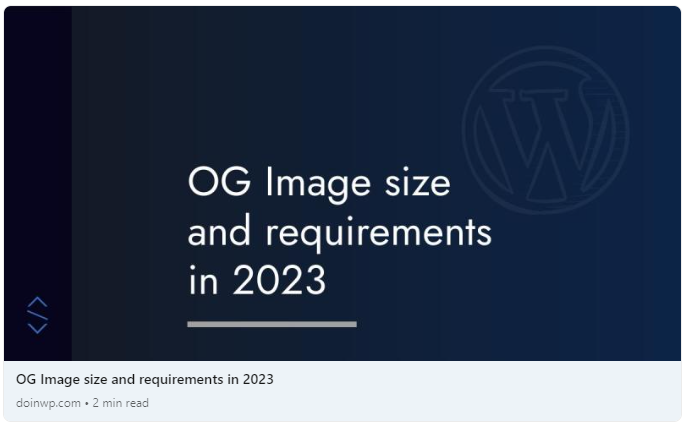
Here you can see a perfect sample how the Open Graph image should look visually:

Open Graph tags – which ones you should use?
When speaking of HTML markup, an OG image tag is not the only one you need for your page to meet Open Graph metadata requirements – in total you need to add four of the required tags and 3 recommended ones:
| Open Graph tag | Importance | Description |
|---|---|---|
| og:title | Required | Title of your page or article – keep it short, between 40-60 characters. It is best if you match it with the title tag of your page. |
| og:description | Recommended | Description of what is your page or article about – write a few sentences and keep it between 150-200 characters to meet the guidelines. It is best if you match it with the description tag of your page. |
| og:type | Required | Describes type of the content which is found on your web page. Content types include: article, website, video, music, profile, book. In most cases you would probably go with the one of the first two – article or website. |
| og:url | Required | Canonical URL of your web page. |
| og:image | Required | URL of the image you want to set as Open Graph image for your page. Always specify an absolute URL (full url, including the domain name), to avoid any compatibility problems. |
| og:image:width | Highly Recommended | Width of the Open Graph image – add this right below the og:image tag to strictly define the image dimensions. This allows social platforms to choose the most suitable image size for link preview snippet (in case you have more than one og:image) and also speeds up its generation time. |
| og:image:height | Highly Recommended | Height of the Open Graph image – add this right below the og:image tag (or og:image:width) to strictly define the image dimensions. This allows social platforms to choose the most suitable image size for link preview snippet (in case you have more than one og:image) and also speeds up its generation time. |
How to add Open Graph information in WordPress to a post or page
Unless you want to use a custom coded solution (and there is reasons for this), you will have to use some kind of plugin for this. Luckily most WordPress SEO plugins (there are not much of them anyway) offer this kind of functionality, so let’s look at the three of the most popular ones – Yoast SEO, All in One SEO and Rank Math SEO. The first step you need to take in all cases is to edit the post or page you want to add the Open Graph tags to. After that just follow these plugin-specific instructions:
How to add Open Graph tags in Yoast SEO or All in One SEO
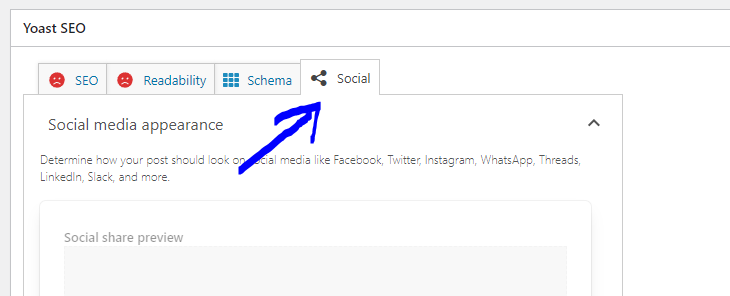
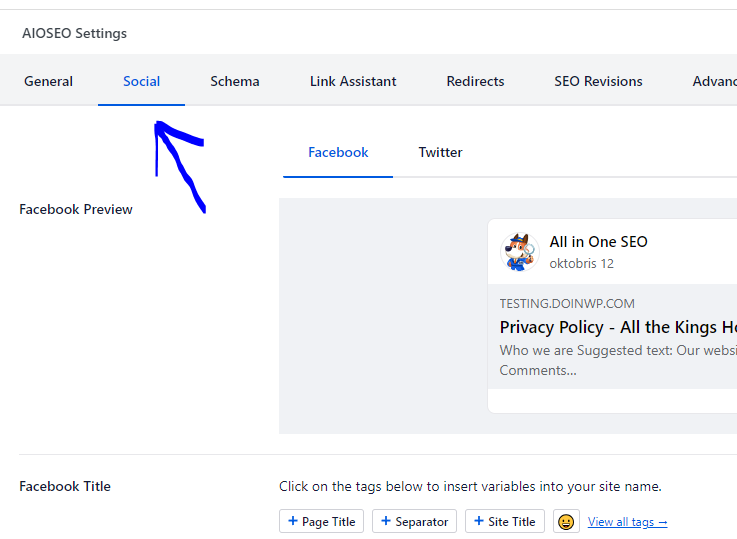
For both Gutenberg and Classic Editor modes, you just need to find a “Yoast SEO” or “AIOSEO Settings” block in your post edit screen (usually by scrolling down) and click on the “Social” tab to add the Open Graph image or edit page title and description for social networks. When using All In One SEO plugin, you’ll notice that there are many additional fields which you can fill in as it comes with most configuration options for social media snippets.
How to add Open Graph tags in Rank Math SEO
Gutenberg Editor: To open the Rank Math interface click on the SEO score, which you should see on the top right corner of the screen, and then – click on “Edit Snippet” button;
Classic Editor: Just locate the “Rank Math SEO” block in your post edit screen and select the “Social” tab, then click on “Edit Snippet” button;
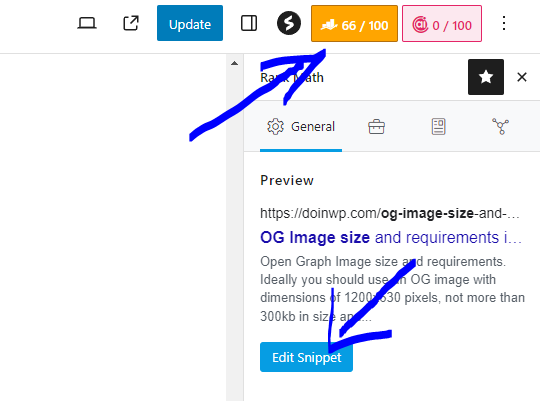
In a modal window choose the “Social” tab (in the Classic Editor mode it will be already selected), and from there you should be able to add the Open Graph image or edit the page title and description (if you want it to be different from the one you already have in your SERP snippet).
How Open Graph images are being used in link preview snippets across different platforms
Some of the most popular social networks and instant messaging platforms which use Open Graph are:
- Facebook, WhatsApp
- LinkedIn, Skype, Microsoft Teams
- X (Twitter)
- Quora
- Discord
- Snapchat
- Slack
- Telegram
- iMessage
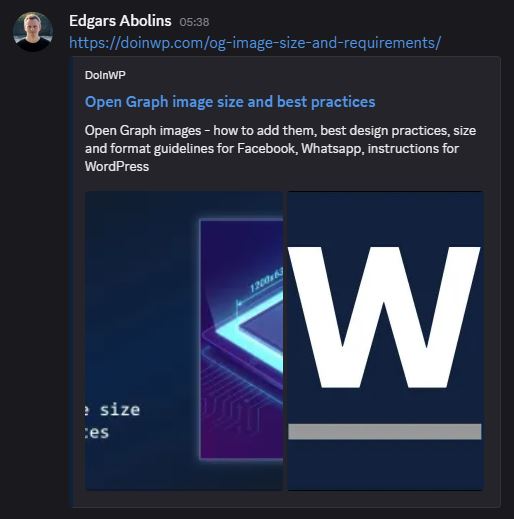
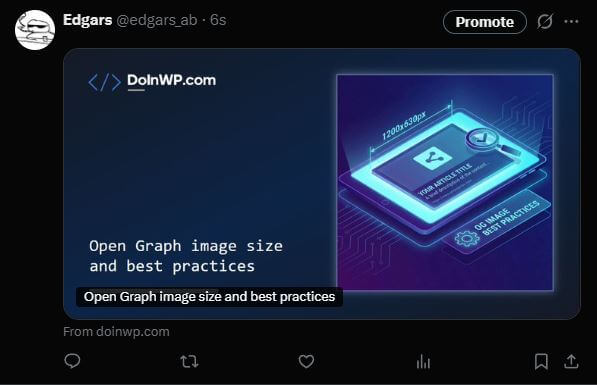
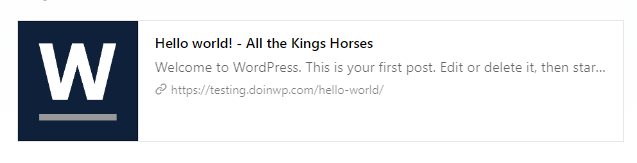
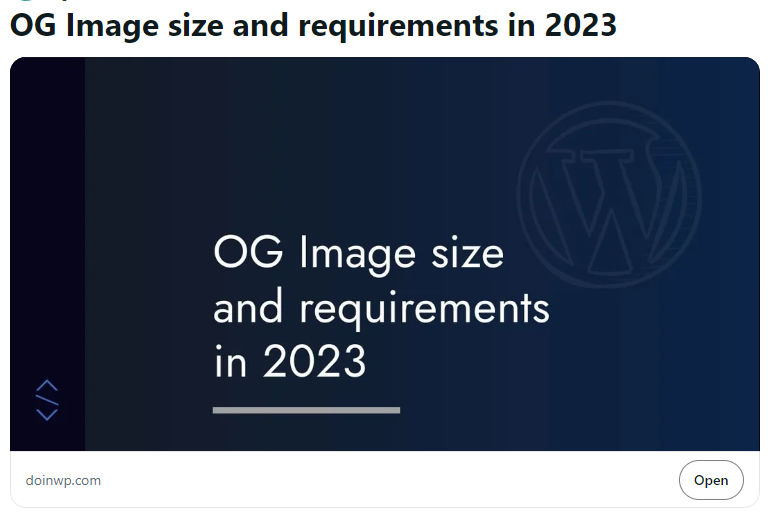
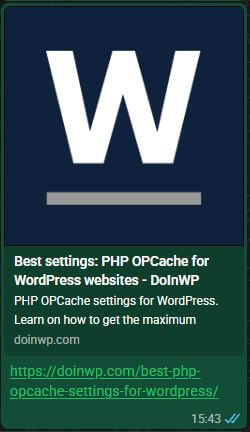
Here you can see some samples of how an Open Graph image looks on link preview snippets on most of mentioned sites:



Frequently asked questions
Free Online Resources for creating and testing Open Graph Images
Open Graph Image Gallery
URL: https://www.ogimage.gallery/
A public gallery of Open Graph Images used on websites accross the Internet. Use this resource to get an inspiration when creating an OG image for your website. Once done, you can submit your website for publishing in this gallery to get a free backlink. 🙂
Social Image Maker
URL: https://socialimagemaker.io/
An online graphics editor which allows you to quickly create any kind of images you need for your social presence, including “Facebok Open Graph” images – the ones we discussed here.
- Add pictures from the library or upload your own
- Add solid shapes and text
- Use layers, rotate or drag & drop functionality
This tool basically covers everything you need to quickly create a simple but good looking Open Graph image.
Facebook Sharing Debugger
URL: https://developers.facebook.com/tools/debug/
Facebook Sharing Debugger allows you to check how a “Link Preview” snippet of your website url will look on Facebook when someone shares it. This tool also comes in handy when you need to update an OG image for existing article in a hurry – you can use “Scrape Again” option to clear the cached version of your snippet.
References
Best Practices on Sharing (recommendations for websites) by Meta: https://developers.facebook.com/docs/sharing/best-practices
Images in Link Shares – Meta guidelines on Open Graph images for Facebook
https://developers.facebook.com/docs/sharing/webmasters/images/
Link Previews – Meta guidelines on Open Graph images for Whatsapp
https://developers.facebook.com/documentation/business-messaging/whatsapp/link-previews
Summary Card with Large Image – X guidelines on creating the X cards (ex Twitter cards) with large images
https://developer.x.com/en/docs/x-for-websites/cards/overview/summary-card-with-large-image
Snapchat Robots – URL Preview Service – Snapchat documentation mentioning the URL previews
https://developers.snap.com/robots
Official website of The Open Graph Protocol:
https://ogp.me/